Conduck is the client - you bring the AI it talks to, either a server you host or a hosted model. This page takes you from nothing to your first message.
Two ways to start
Fastest
Start with a hosted model
No server to run. Create an OpenRouter key, bring it to Conduck, and you’re chatting in minutes - try the app before hosting your own. In Conduck, open Settings → Personal AI → Guided Setup and pick “OpenRouter with your key”.
Chat, images and text files - no tools, no file transfer.
Run a self-hosted AI agent - or a server that implements the OpenAI-style routes Conduck needs - on an always-on machine you control: a VPS, or a Mac mini at home.
A compatible endpoint that passes Conduck's route and response checks, reachable over HTTPS - or over plain http:// on your own network.
Conduck is a native Apple app that talks to an AI you choose. Choose OpenRouter and there is no server to run and no account to make with us: bring your own OpenRouter key, pick a model, and you’re chatting in minutes. It is also the way to try Conduck before hosting an agent of your own.
Quick path
In the app
Settings → Personal AI → Guided Setup → OpenRouter with your key
You need
An OpenRouter account, an API key to paste into Conduck, and a model to pick.
You get
Chat - with images and text files - on iPhone, iPad, Mac, Apple Watch and CarPlay. Not tools, file transfer or an agent loop.
Optional
Speech runs on the same key - Settings → Voice, whenever you want it.
1
Create an OpenRouter key
Open OpenRouter’s key console and create an API key - keys start with sk-or-. You paste it into Conduck once. OpenRouter bills you directly for what you use, and Conduck never sees or signs into that account.
In the app, go to Settings → Personal AI and open Guided Setup. The first time, it opens on a short “How Conduck works” primer - continue past it, and the next question is where your AI lives.
3
Choose “OpenRouter with your key”
It sits under Hosted, below the self-hosted options. There is no address to type in this lane - Conduck already knows where OpenRouter is.
4
Pick a model, then Connect
Paste the key, then Validate key to load OpenRouter’s model list - or type a model ID yourself, like anthropic/claude-opus-4. Choose your model, then Connect. The key goes into your device’s Apple Keychain, and Conduck sends it only to OpenRouter.
5
Start a chat
Conduck confirms the connection, and the model you picked answers everywhere you use the app. Conversations sync through your own iCloud, so a thread you start on the phone is already on the Mac.
What you get
iPhone · iPad · Mac · Apple Watch · CarPlay
Multi-turn chat with the model you chose, on every Conduck surface. Conduck sends this chat’s context with every message, so the thread keeps up wherever you pick it up. Pictures and text files ride along inline to models that can read them.
What it deliberately doesn’t do
tools · file transfer · agent loop
No agent tools, no file transfer, no agent loop. This lane talks to a model, not to an agent that can run things for you, work through your files, or hand one back. Those need a server you host yourself.
Conduck uses OpenAI-compatible routes over HTTPS - or over plain http:// to a private address on your own network. Three things have to work:
POST /v1/chat/completionssends a message, gets the reply
GET /v1/modelslists the available models
Authorization: Bearera token, or explicit keyless access
What comes back matters too: the model list wrapped in a "data" array, and the answer as text inside JSON - not an SSE stream.
Model server
Ollama · LM Studio · LiteLLM · vLLM
A plain endpoint on your own machine that passes Conduck's OpenAI-compatible route and response checks. It connects and chats - Conduck sends this chat’s context with every message. It does not execute returned tool calls.
Agent gateway
OpenClaw · Hermes
The full assistant — a self-hosted agent harness that runs the complete agent turn server-side, with the tools and file access you enable.
A few of these words mean different things depending on who is writing. Here is the sense Conduck uses - and the sense it doesn’t.
Agent harness (agent runtime)
The scaffolding that turns a model into an agent: the loop it runs, the tools it can call, the filesystem it can touch. Claude Code and Codex CLI are harnesses you drive from a terminal. OpenClaw and Hermes are harnesses you run as a server - and that is the shape Conduck talks to.
Agent gateway
What this site means when it says gateway: a self-hosted AI agent on an always-on machine you own, reachable over HTTPS - or, if you only ever use it at home, over plain http:// at a private address. It runs the whole turn server-side, tools and files included. OpenClaw and Hermes are the two we test against.
AI gateway / LLM gateway
The industry’s other sense of the word, and not ours: a routing proxy in front of model providers - LiteLLM, Portkey, Kong AI Gateway, Cloudflare AI Gateway, OpenRouter. Conduck can connect when the routes and response shapes it needs match. These services route requests; they don’t run an agent.
Model server
Something that serves a model and nothing else - Ollama, LM Studio, vLLM, LiteLLM. It chats; it does not execute the tool calls it returns. LiteLLM appears under both headings on purpose: it routes like a proxy, and to Conduck it is still a chat endpoint with no tools of its own.
OpenAI-compatible
An API family rather than a compatibility certificate. Conduck needs POST /v1/chat/completions and GET /v1/models with the request and response shapes it checks, over HTTPS - or over plain http:// on your own network. Use the compatibility check instead of relying on the label alone.
Hosted model
A model you rent instead of run. In Conduck’s guided setup that is OpenRouter with your own key: no server, no machine to keep awake, and no tools or files.
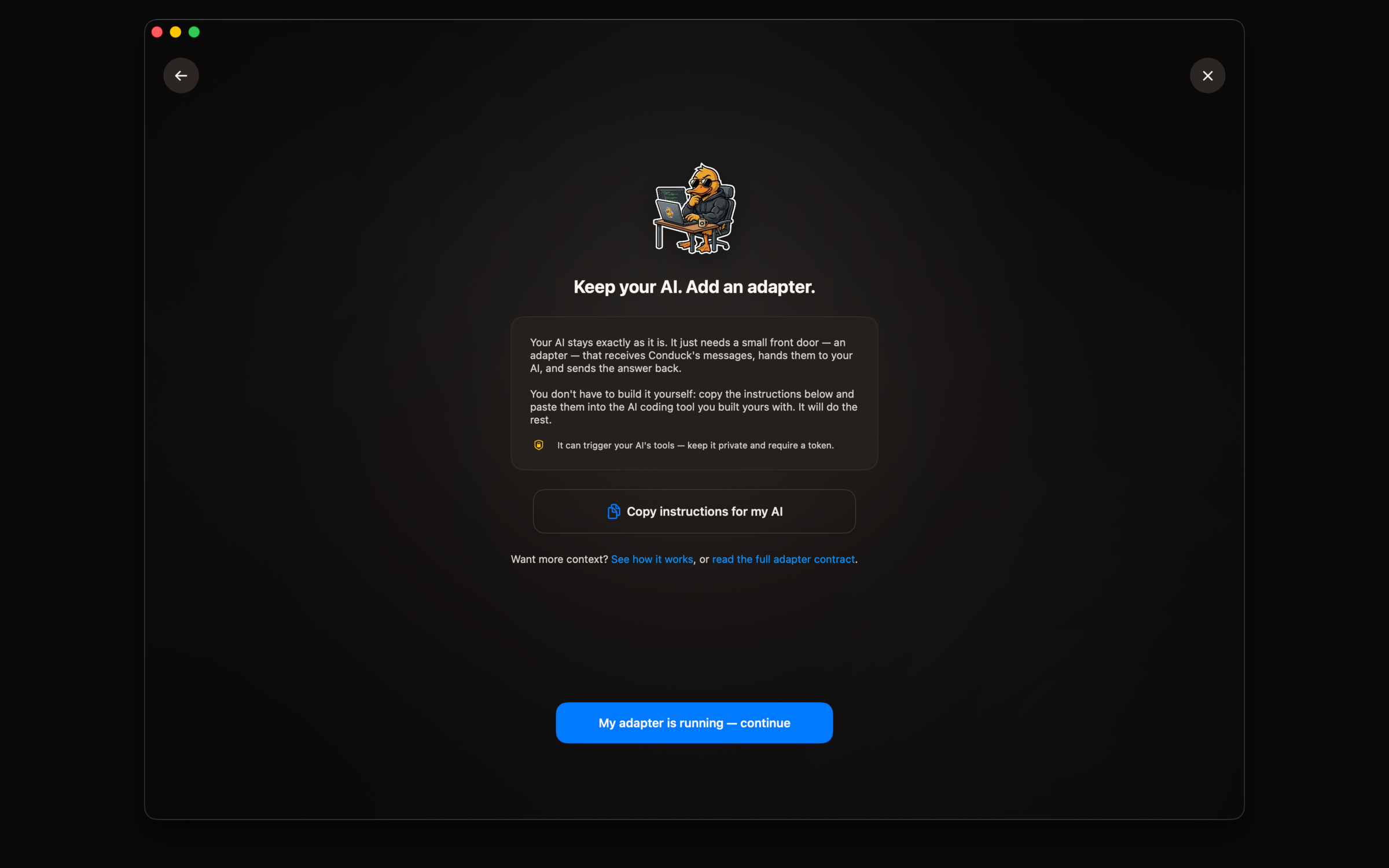
Give one guide to your coding AI. It builds and checks the adapter; you review the setup, then pair it with Conduck.
01 / 07
Pick your engine
Keep the AI you built. Conduck only needs a small adapter in front.
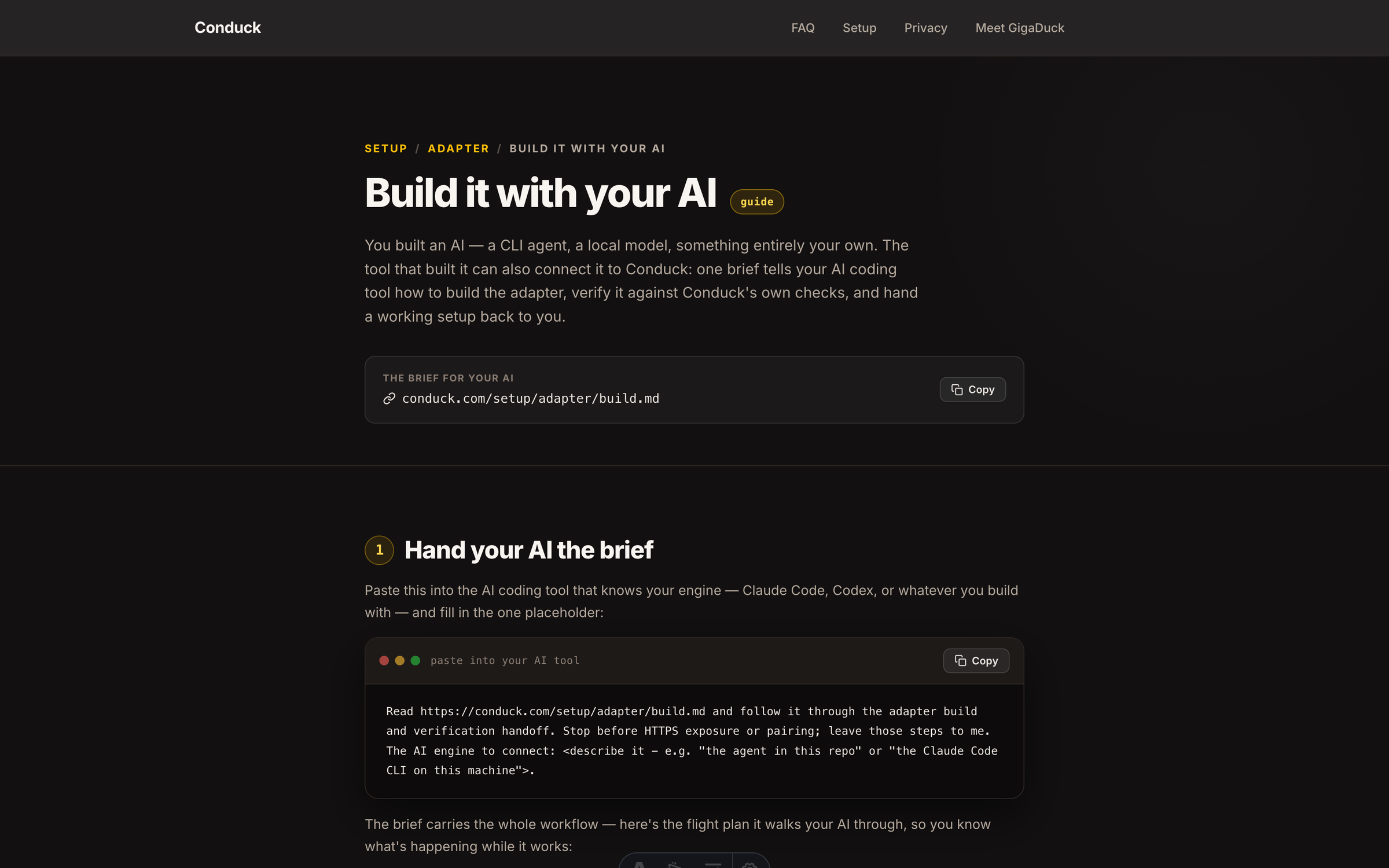
Copy the brief
Give build.md to the coding AI that already knows your project.
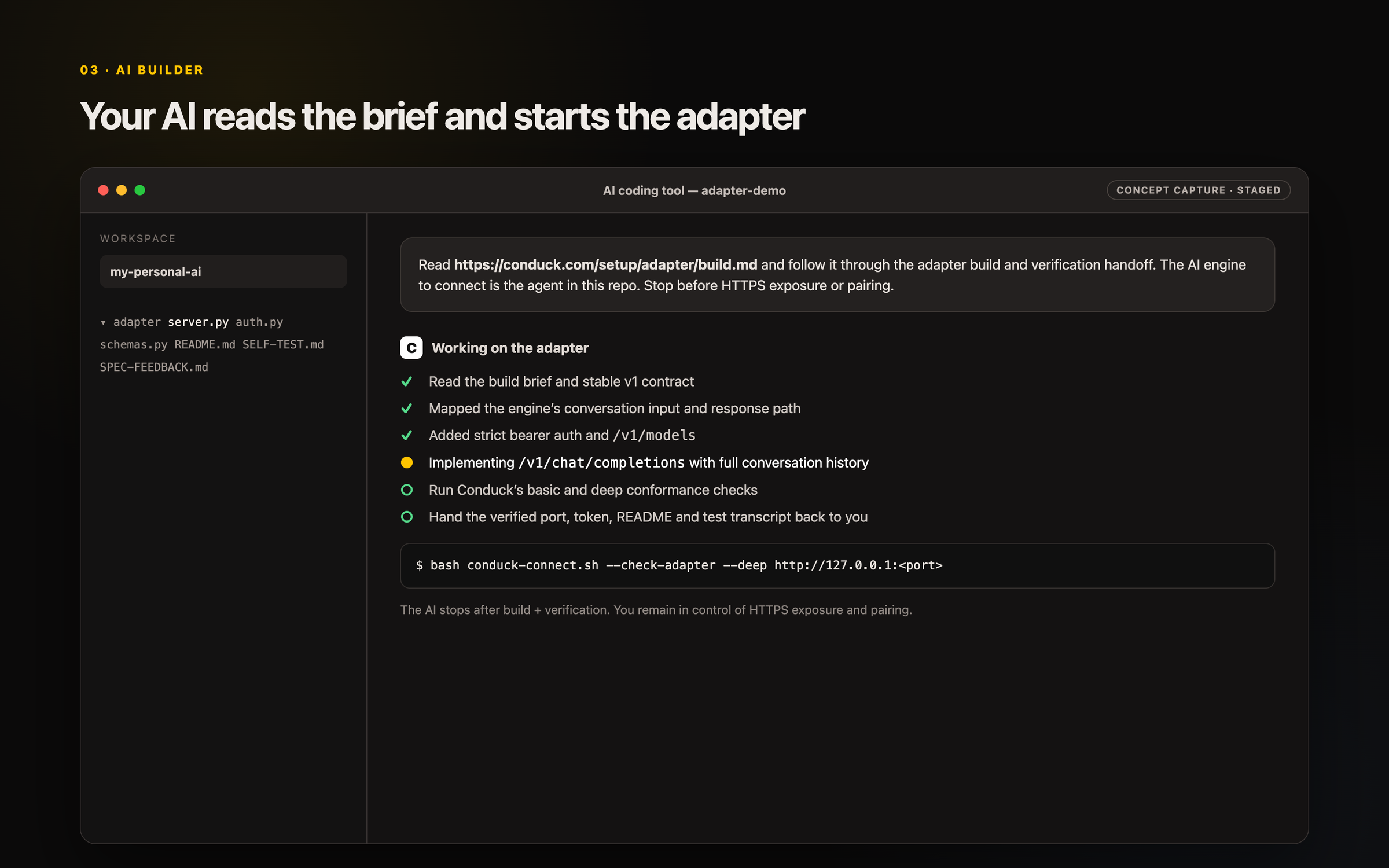
Let your coding AI build
Staged example: your coding AI maps your engine to Conduck’s stable adapter contract.
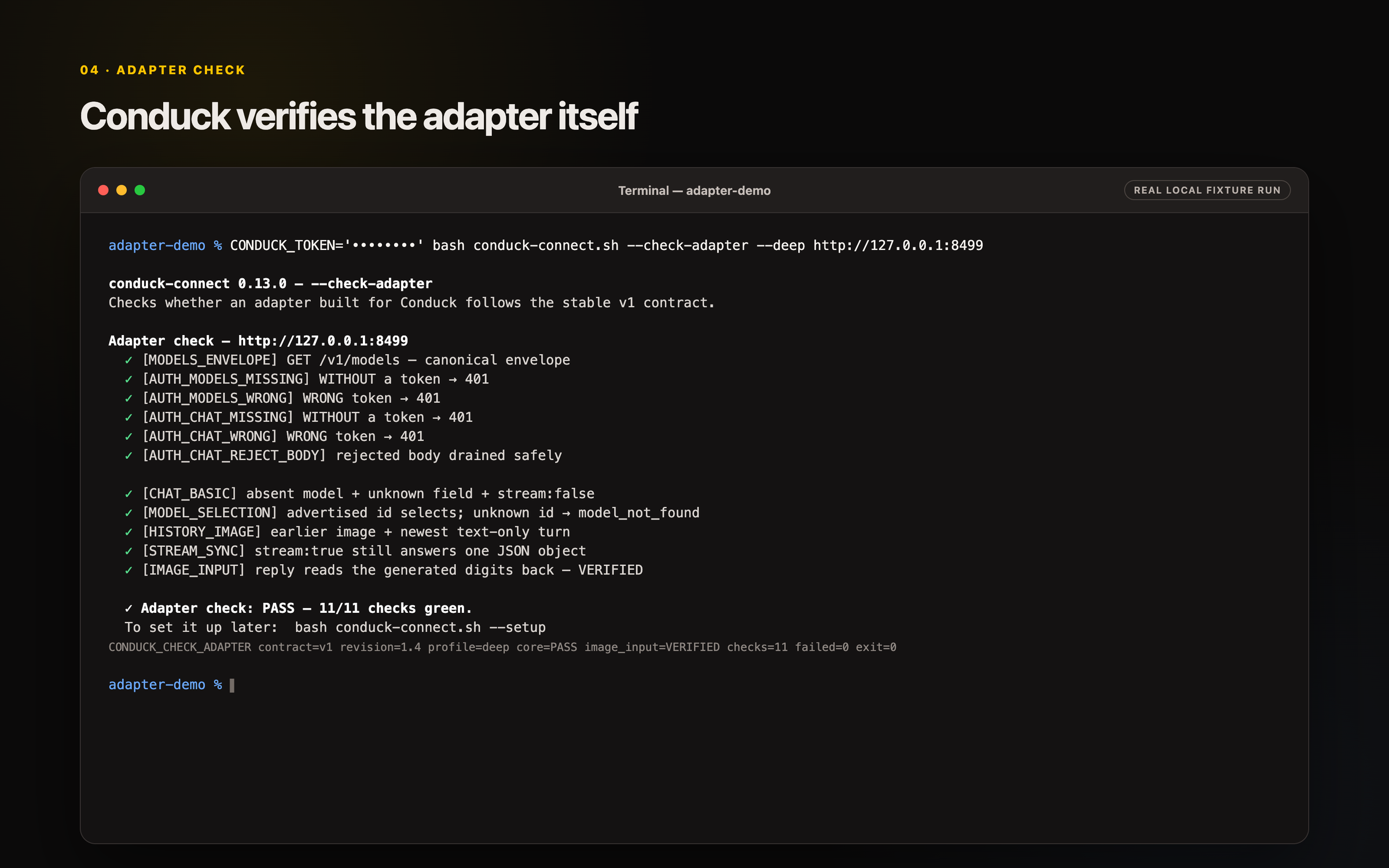
Check the adapter
Fixture example: run Conduck’s contract checks before anything goes online.
Review setup
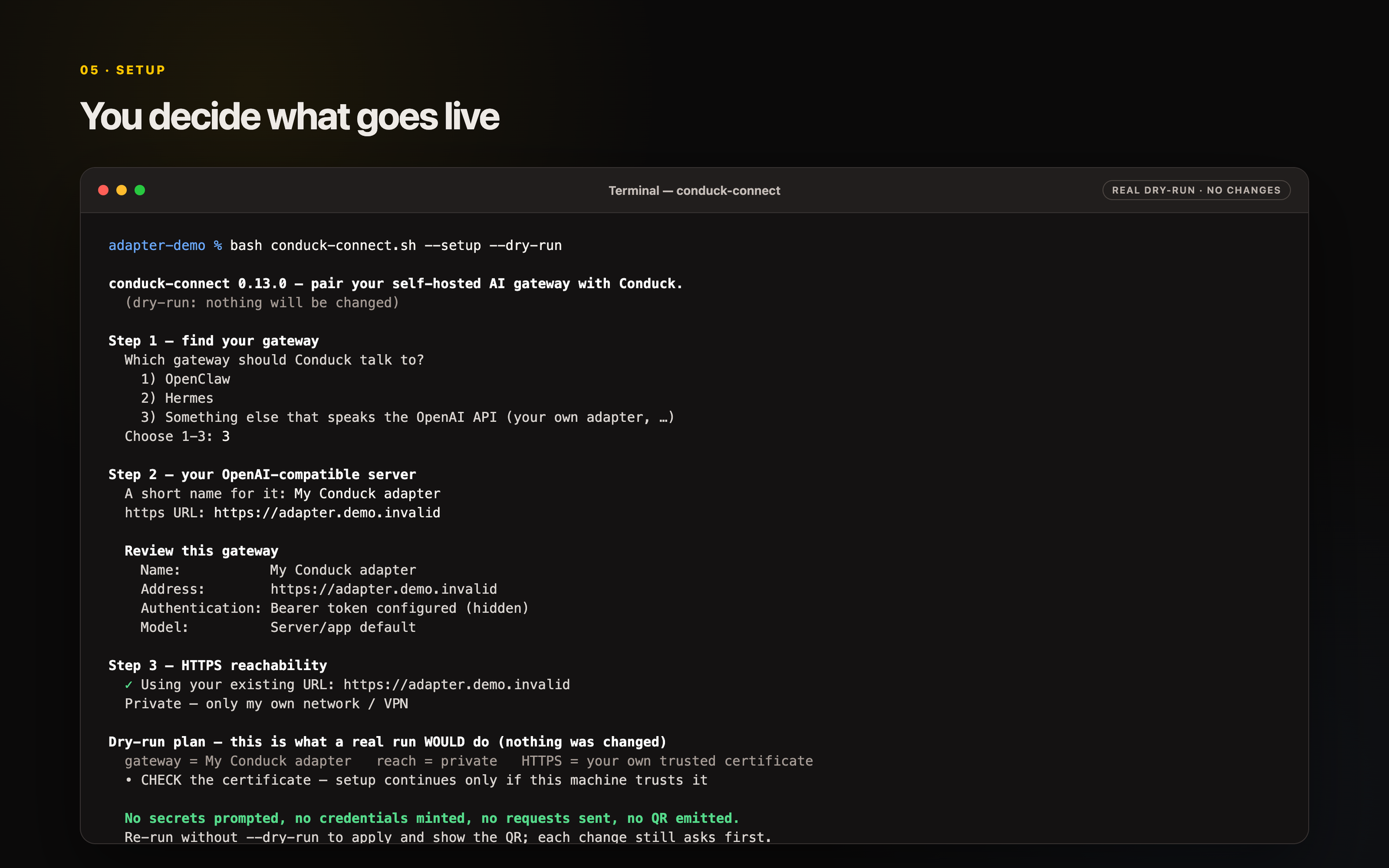
Dry-run example: review the address, authentication, and network route before applying changes.
Create the code
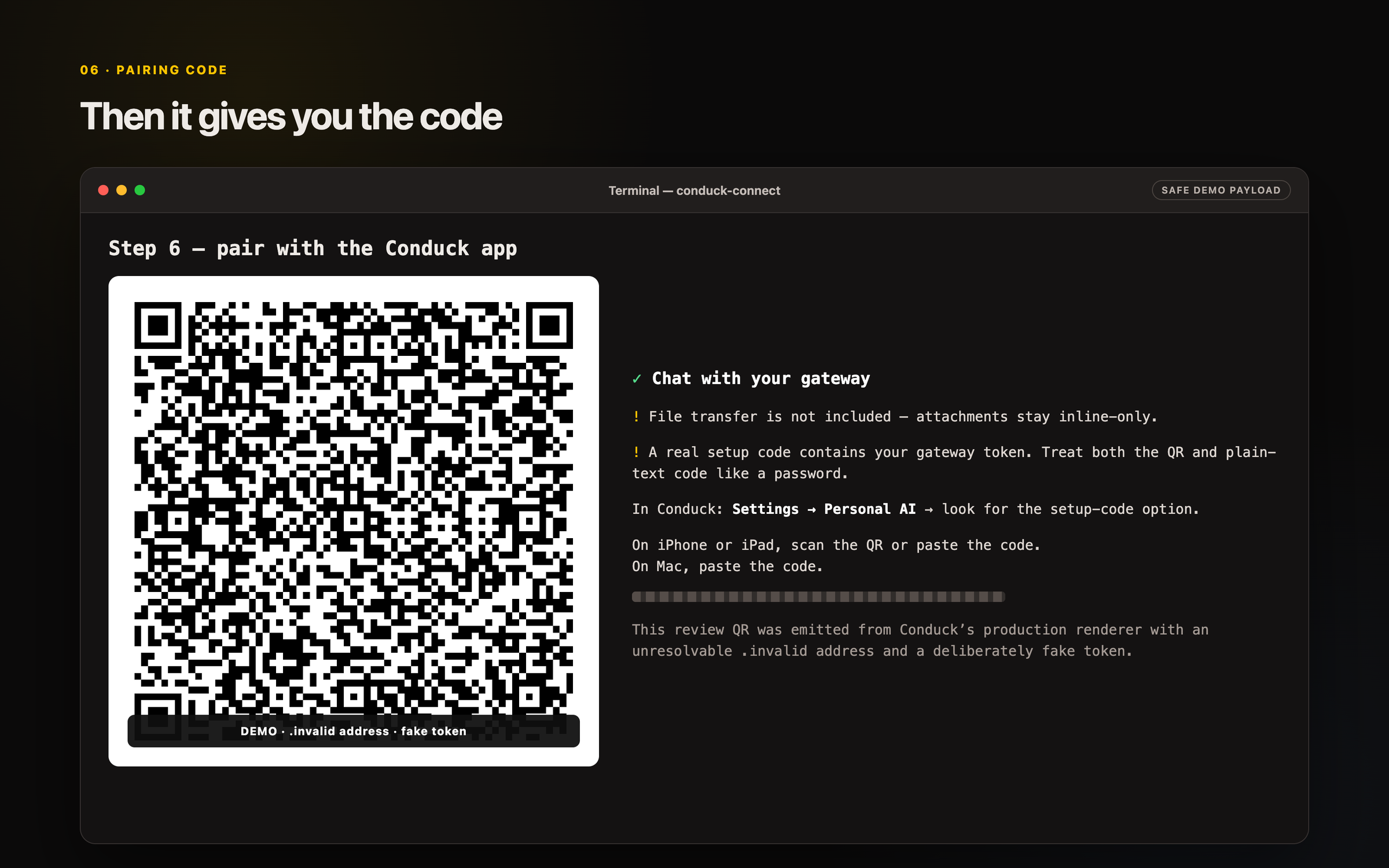
Safe demo: a real run emits the private setup code you pair with Conduck.
Connected
Conduck confirms the connection before you start a new chat.
New self-hosted server
From a bare host to your first message
1
Get an always-on host
A small VPS, or an always-on machine at home (Mac mini, NUC, Raspberry Pi). It has to stay awake - your phone sleeps, your server shouldn’t. This walkthrough assumes Linux or macOS, and that you can open a terminal on it. 4 GB of RAM is plenty for a server that calls a cloud model; running the model on that machine yourself needs a lot more.
2
Install your AI server
Install what you want to run. OpenClaw and Hermes are self-hosted agent harnesses - the full assistant, with tools and files. A model server like Ollama, LM Studio, LiteLLM or vLLM only chats. Either way, follow that project’s own guide, which the maintainers keep current. Built your own AI? Follow the adapter contract.
Anthropic, OpenAI, Gemini, OpenRouter - whichever your server routes to. You pay the provider directly, and the key lives only on your own machine.
4
Make the endpoint reachable
Conduck needs your server’s OpenAI-compatible chat endpoint enabled and reachable - over HTTPS from anywhere, or over plain http:// at a private address if you only ever use it at home. This step is the “from anywhere” route. Run conduck-connect on the host: its welcome menu lets you choose setup, check existing software not built for Conduck, or check an adapter built specifically for Conduck - and, once something is set up, show a saved setup code to pair another device, list what this machine already has, or change one thing about it, like a new web address after a tunnel hostname moves. When an option finishes it offers to take you back to the menu. Choose setup - or run it later with --setup to skip the welcome menu. It catches the common “chat endpoint off” failure, helps with HTTPS, runs real test requests, and prints a setup code once everything passes. Along the way it offers file transfer: an optional password-protected file server over your agent’s folder, which you can skip.
A hostname is still the easier, more common path - a raw IP works too, as long as it carries a publicly-trusted certificate issued for that address. Three routes to one are free: Tailscale Serve (a single command), Let’s Encrypt (it issues for bare IPs too), or a domain behind Caddy - each one written out in the <a href="/setup/tls/">certificates and TLS guide</a>.
5
Connect it in Conduck
Open Settings → Personal AI. If you ran conduck-connect, scan or paste its setup code. If you set the server up yourself, add it by hand with its address and token. Some servers need a model named in every request - Ollama, vLLM and LiteLLM among them. Fill in the Model field too; the connection test loads the list yours offers. The token stays in your device’s Apple Keychain - Conduck never sends it to us. Treat the setup code itself like a password: it carries that token, so anyone who scans or photographs it reaches your server too, until you rotate it. That’s it.
Want to see what setup would do before it does anything? Nothing is changed, nothing is sent, and no setup code is printed - it ends by printing the command that runs it for real. Preview with bash conduck-connect.sh --setup --dry-run
The setup code is a working credential, not a receipt - keep it as private as the token inside it. Lost yours? Print it again on the same host with bash conduck-connect.sh --show-code
The code is an open format - a gateway may mint it natively instead of running the script; the minting rules live with conduck-connect on GitHub.
After setup
Change or remove a setup later
Pairing isn’t the end of it. A tunnel hands out a new address, you want a different model, or you stop using a server entirely - and until you remove that last one, its file server keeps running over your agent’s folder at every boot. Three commands cover all of it, on the host where you ran setup.
bash conduck-connect.sh --list
What this machine already has set up: every saved connection with its address, model and shared folder, and whether each file server is running right now. It asks nothing, changes nothing, and prints no password and no setup code.
bash conduck-connect.sh --edit
Change one thing about one setup - a new web address after a tunnel moves, or a different model - and re-run only the checks that change affects. Re-showing the setup code and removing the setup live on the same screen. Leave the id out and it asks which setup you mean.
bash conduck-connect.sh --forget <id>
Remove one setup completely: it stops and deletes that setup’s file server, deletes both copies of the file-server password, and deletes the saved setup itself. It lists everything it will remove before it asks, and you confirm by typing the id. Your shared folder, your agent’s own configuration and the server itself are left alone - it keeps running, on the same port, with the same token.
Removing it here doesn’t reach your devices or your server. The device you paired still holds that server’s address and token, so remove the connection in Conduck too - and if the token might have leaked, rotate it on the server, which is the only thing that revokes it.
The handful of things that trip people up - and the one-line fix.
The URL won’t save, or the server can’t be reached
Conduck needs an https:// address for anything it reaches beyond your own network. There is one exception, and it covers the common bare setups: a plain http:// address is accepted when only your own network can reach it - a private IP address like 192.168.1.20 or 10.0.0.5, a loopback address, or a name ending in .local. Ollama on :11434, LM Studio, or an Open WebUI box in the next room all connect that way, with no certificate to arrange. Everything else on plain http:// is refused, including a domain name - however private the machine behind it is - and the 100.x addresses an overlay VPN like Tailscale hands out. That is Apple’s rule, decided from the address itself before any request is sent, so Conduck tells you at the moment you type it rather than failing later. Save a plain-http address and the app says so wherever you review that connection: the traffic is not encrypted, anyone else on that network can read your messages and your key, and it only works while you are on that network - not in the car, not out with the Watch. To reach your server from anywhere, put HTTPS in front of it and expose it; conduck-connect walks you through both. One more trap: “localhost” on your phone means the phone itself, and most local servers listen on 127.0.0.1 alone - use the machine’s address on your network instead. For addresses on your home network, iOS also needs Conduck’s Local Network permission (in the iOS Settings app). The full list of what qualifies and what never does: the plain-http rule.
It worked yesterday, and this morning nothing connects
Check the address before anything else. A Cloudflare quick tunnel - the *.trycloudflare.com address you get without a domain - is handed a new hostname every time it restarts, so a setup that worked last night is dead by morning and the setup code you saved points at nothing. Re-run bash conduck-connect.sh --edit on the host: it takes the new address, checks that something answers there, offers to move the file address to the same host, and offers to reprint the setup code - instead of walking the whole wizard again. It recognises a quick tunnel and says so at the top of that screen. For an address that stays put, move to a routed hostname on a named Cloudflare tunnel, to Tailscale Serve, or to your own reverse proxy.
Tailscale says connected, but your server still can’t be reached
iCloud Private Relay can take over name lookups even while Tailscale reports connected and its own DNS screen says it’s in use - so this one hides well. Your server’s .ts.net name then gets looked up on the public internet, which for a private tailnet-only server returns an address that answers on none of the ports Conduck uses: the server check and the file-server check both fail as unreachable, while the server itself is perfectly healthy. Turn it off in Settings > your name > iCloud > Private Relay, then test again. Private Relay is on by default with iCloud+, so this catches people who did everything right. Quick confirmation: if Safari on the same device can’t load your server’s address either, it’s the lookup - not Conduck.
“/v1/models” returns a web page - or JSON the app refuses
An HTML page usually means the chat endpoint is still off - it ships off by default on OpenClaw and Hermes. Re-run conduck-connect, or enable it in that gateway’s config and restart. Behind a tunnel or reverse proxy it can also be a login or access page answering instead of your server. A third cause is an address that’s missing a path: some servers host their OpenAI-compatible API below the site root, so the root answers with that server’s own web page - and a 200 makes the address look right. Take the full API base from the project’s own docs and enter it with the path (for example https://host/api, not https://host); Conduck and conduck-connect keep it. If it’s JSON but Conduck still refuses, the shape is wrong: the reply must be an object with a top-level "data" array - see the adapter contract.
“The request to your AI was refused” (401 or 403)
Two different faults end in the same refusal, so start with the one that has nothing to do with credentials: the request was rejected as it arrived, before any token was looked at. On a server you set up as keyless there is no token to reject at all, so the usual cause is the address the request was sent to. Ollama works this way - it reads the Host header (the address line every request carries, naming the host it was sent to) and serves only requests addressed to a local name or address, while a tunnel usually forwards your public hostname through unchanged. The tell is that the server answers perfectly on the machine itself and refuses the very same request through your HTTPS address. Fix it at the front: if your tunnel can’t rewrite that line itself, point it at a small local proxy that does - proxy_set_header Host 127.0.0.1:11434; in nginx - rather than at Ollama directly. Ollama skips the check altogether once it listens beyond loopback, so OLLAMA_HOST=0.0.0.0 clears it too, at the cost of answering on every interface. OLLAMA_ORIGINS does not: it allow-lists browser origins for CORS, and Conduck sends none. Then the credential, which is the other fault: if your server does take a token, copy it again from the server and re-pair. If the token is definitely right, check what sits in front - a reverse proxy or access policy (e.g. Cloudflare Access) can reject the request before your server ever sees it. The proxy fix, written out: the Host-header trap.
Certificate or TLS error
A self-signed certificate is never trusted, however it’s presented - your device refuses it outright, and nothing in Conduck or conduck-connect can override that. An expired certificate just needs renewing. For a certificate your device already trusts, three routes are free: Tailscale Serve issues one automatically on your private tailnet, nothing exposed publicly; Let’s Encrypt now issues certificates for bare IP addresses too, so no domain is required; or put a domain in front of your server with Caddy or another reverse proxy that mints and renews certificates on its own. Each route is a step-by-step recipe in the certificates and TLS guide, alongside the fix for every certificate error the app can show.
It connects, but won’t answer - or wants a model
Servers like Ollama, vLLM, and LiteLLM need the model named in every request - set it in that connection’s settings in Conduck (the connection test suggests what your server offers). A 404 when sending usually means that model isn’t available on the server: not pulled or loaded yet, or the name doesn’t match. An empty model list means the endpoint is real but has nothing to answer with - load a model first.
It connects and chats, but has no tools or files
You’re pointed at a chat endpoint, not an agent - and nothing errors, which is what makes this one easy to miss. On Hermes, pair the full-agent API server (port 8642 by default), not the tool-less “hermes proxy” on 8645: both chat, only the API server carries the agent’s tools and skills. And a plain model server - Ollama, LM Studio, vLLM, LiteLLM - only ever chats; Conduck doesn’t execute the tool calls it returns. The chat itself is unaffected either way: Conduck sends this chat’s context with every message, so the thread keeps up wherever you pair it. See what your server can do.
File transfer tests green, but the agent can’t read attachments - or files it saves never come back
A passing file-server test proves Conduck can store bytes - not that your agent may use them. On OpenClaw, a tools.deny containing group:fs makes every upload invisible to the agent (it web-searches for the filename, or the turn times out into “no response”), reading PDFs natively needs the pdf tool enabled, and saving files back needs write allowed. Separately, a file the agent “sends” as a MEDIA:-style attachment directive is stripped by the chat endpoint - it must name the file in plain reply text instead. On OpenClaw and Hermes, re-run conduck-connect: its file-lane step reads that gateway’s own tool policy, offers the fix where it can safely apply one, and installs agent guidance covering all of this. OpenClaw loads that guidance when a session starts, so test it in a new conversation. On any other OpenAI-compatible server there is nothing agent-side it knows how to configure, so the fix is yours - and it is almost always one of two things. The folder first: the file server has to serve the exact folder your agent reads and writes - an agent in a container, under another account, or on another machine sees a different filesystem than the host you ran setup on, so a path that looks right there can be one it never opens. Then the tools: the agent needs a file-reading tool at all, and its own policy has to allow it. Details: file-lane troubleshooting.
The AI can’t see your photos - or answers as if it could
Three different things hide behind this, and only two of them announce themselves. The plain one: the engine behind your server doesn’t read images at all. The honest one: your server declines the picture with a 400 carrying the code image_unsupported, and Conduck tells you the photo was declined and offers to resend the message without it. The bad one: the server answers confidently about a picture it never saw, and nothing in the app can tell. conduck-connect tests for exactly that before you pair - every verification sends one real chat turn carrying a small picture of six random digits and asks for them back. Answer twice, on two different pictures, without coming close, and the run reports photos as unverified rather than broken: from outside, a picture that never reached the engine and an engine that couldn’t read it look identical. It then asks whether to pair anyway, and Enter means no. The fix is one of two things - send pictures to an engine that can see them, or make your server refuse them honestly with that 400 and code. Text-only on purpose? The honest refusal is the supported answer, and it passes the check cleanly.
Works on iPhone, but not on Apple Watch
With your iPhone nearby, the Watch reaches your server through your phone, so a Tailscale-only server works. A standalone Watch - away from your iPhone, on its own Wi-Fi or cellular - can’t reach a Tailscale-only server. For that, expose it with Funnel, Cloudflare Tunnel, or your own HTTPS so the Watch connects directly - what going public costs is set out in the certificates and TLS guide.
Your provider is out of credits, or rate-limiting you (402 or 429) - or keyless is refused on a public address
402 means your OpenRouter account needs credit; 429 means you’re being rate-limited - wait it out, or add credit to lift the free-tier caps. And conduck-connect refuses to publish a keyless server unless you override it on purpose with --allow-keyless-public, which its refusal message names (adding one by hand, the app warns instead) - keep keyless servers on a private network, or add a token.